
“To test Oracle MSCA or MWA connections on current Windows operating systems, you must manually enable the legacy Telnet Client. Navigate to Control Panel > Programs and Features > Turn Windows features on or off. Check the box for ‘Telnet Client’, click OK, and launch your command prompt to connect using telnet [mwa_server_name] [port].”
“Oracle Mobile Supply Chain Applications (MSCA) run on top of the Mobile Web Applications (MWA) framework, allowing warehouse users to interact with EBS via RF barcode scanners.The telnet client is used to connect to the MWA server in EBS. Windows has telnet installed by default but it is often disabled. If you use Start > Run > telnet and the program is not found, then telnet is disabled. In this post, we will check how we can enable it
How to Enable Telnet For Windows for MWA
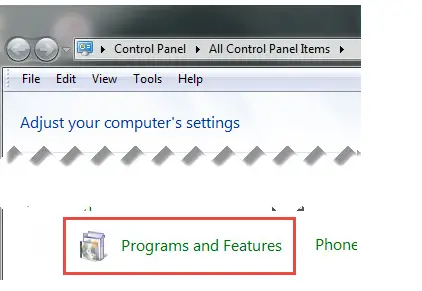
Navigate to Control Panel > Program Features (or add/remove programs)
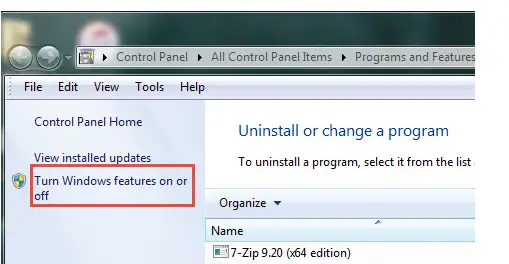
Choose “Turn windows features on or off” from the left panel)
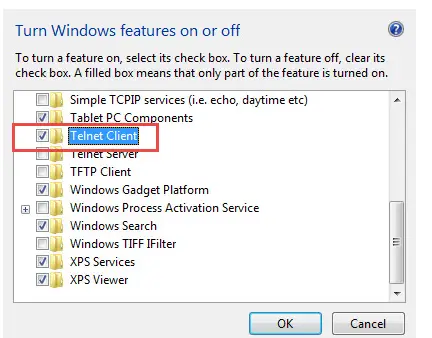
Click “telnet client” to enabled – checked = Yes
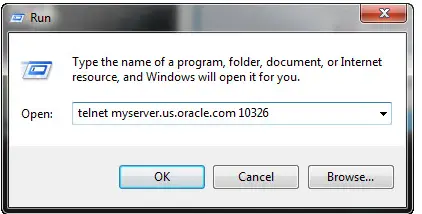
Start > run > telnet
Now it should work and telnet should open.
How to run telnet to connect to MWA
We should connect to MWA using telnet <servername> <port> where you replace the <servername> and <port> with the details for your system.
1. Run telnet
2. Choose the telnet option
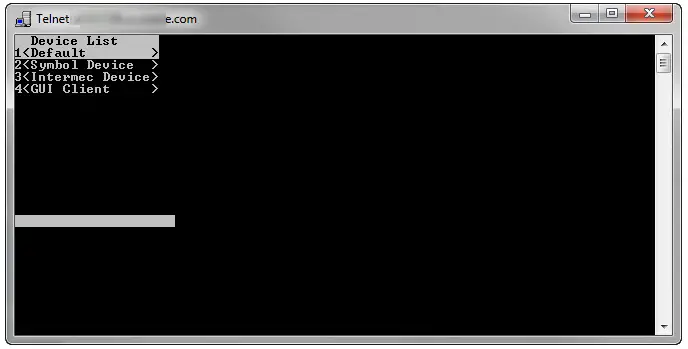
3. Login
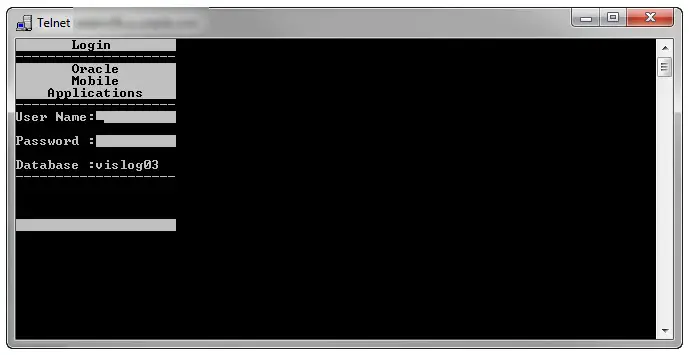
Now you should be able to do your activities
Related Articles
MWA information for 11i and R12